Local management interface
Quickstream Node can be managed directly via a web interface without connection to Quickstream Cloud. The only supported web browser is Chrome.
If you want to use the interface for the first time, you should set the access password, and choose the access level. The configuration is different for Windows and Linux.
Windows
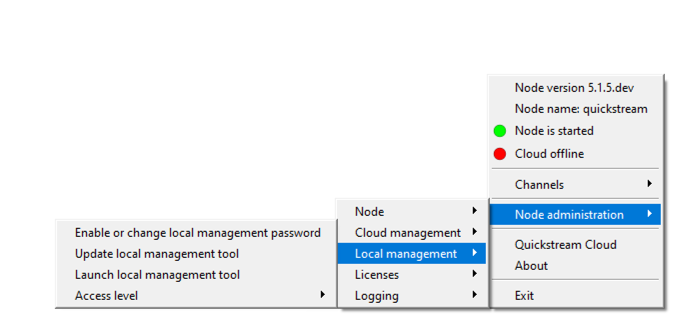
Open the Quickstream Setup tray application, which should be visible on your tray. If it is not visible, please start it manually be running C:\Program Files\Quickstream\Quickstream5\bin\quickstream5-setup.exe
- Select Access level and decide if you want to access the management interface to be disabled or accessible from localhost (the server that Quickstream Node is running), local network, or not restricted.
- Select the option
Enable or change local management password. To change your password, you first need to enter the old one. If it is your first time setting the password, the old one is empty (just hit enter). The password may also be changed from Quickstream Cloud.
Linux
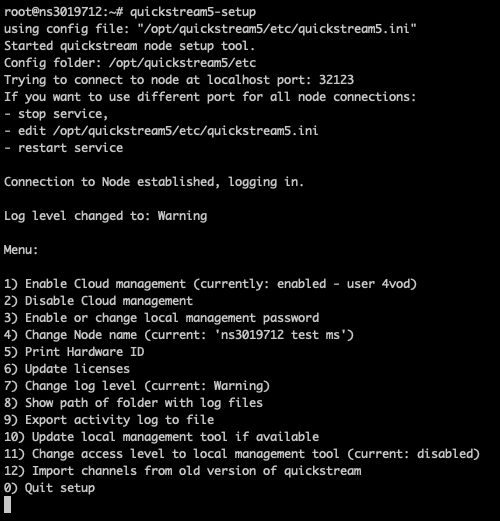
- Select option numer 3.
- To change your password, you first need to enter the old one. If it is your first time setting the password, the old one is empty (just hit enter). The password may also be changed from Quickstream Cloud.
- Select option numer 11 and decide if you want to access the management interface to be
disabled(option numer 0) or accessible fromlocalhostoption number 1 (the server that Quickstream Node is running),local network(option number 2), ornot restricted(option number 3).
Execute quickstream5-setup command.
Accessing the interface
- Go to
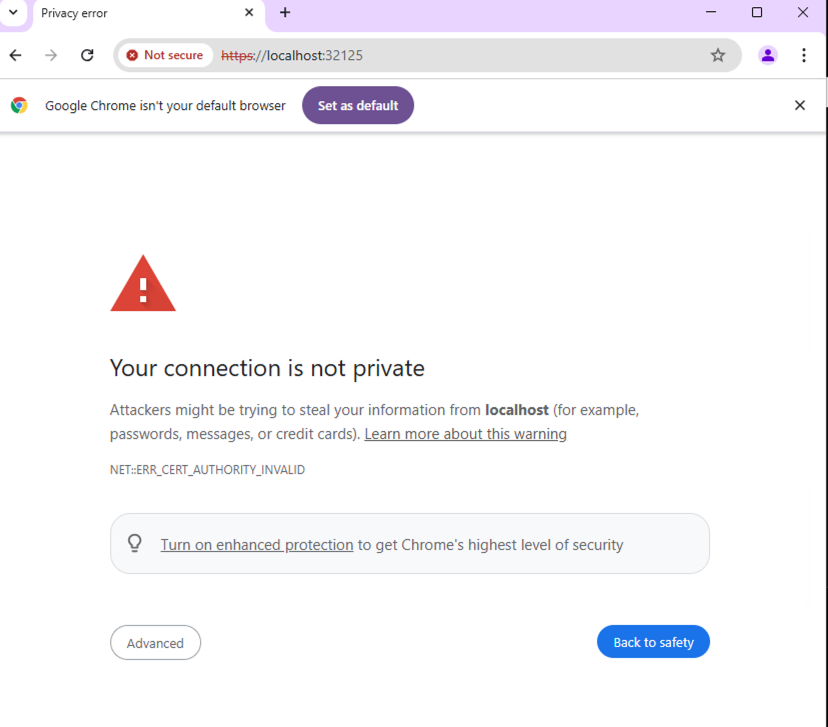
https://localhost:32125orhttps://[your_node_ip]:32125. - Click
Advancedbutton andProceed to localhost (not safe). - Enter the password that you set previously.
- You should see the management interface now.
You will see the information that the connection is not private. This is normal. Do not be alarmed.
Updated on Jan 26, 2026


